


If you’re planning to access EVE-NG over the internet, changing the default credentials should be your first priority.
Publishing an EVE-NG server with the default passwords can expose it to automated attacks and unauthorized access within a very short period of time.
This guide explains how to change the default passwords and create additional users in EVE-NG.
Default Credentials
Linux (CLI)
Username: root
Password: eve
EVE-NG Web Interface
Username: admin
Password: eve
For security reasons, both passwords should be changed before exposing the server to the public internet.
Method 1: Change Passwords from the CLI
The embedded video above demonstrates the recommended process for changing the default Linux root password and securing your EVE-NG installation before exposing it to the internet.
The video demonstrates how to:
- Change the Linux root password
- Secure the server
- Update default credentials before internet exposure
Method 2: Change the Web UI Password
- Log in to the EVE-NG Web Interface.
- Navigate to:
Management → User Management
- Locate the user account.
- Click Edit.
- Enter a new password.
- Save the changes.
Creating a New Web UI User
Instead of using the default admin account every day, you can create a separate user account.
- Navigate to:
Management → User Management
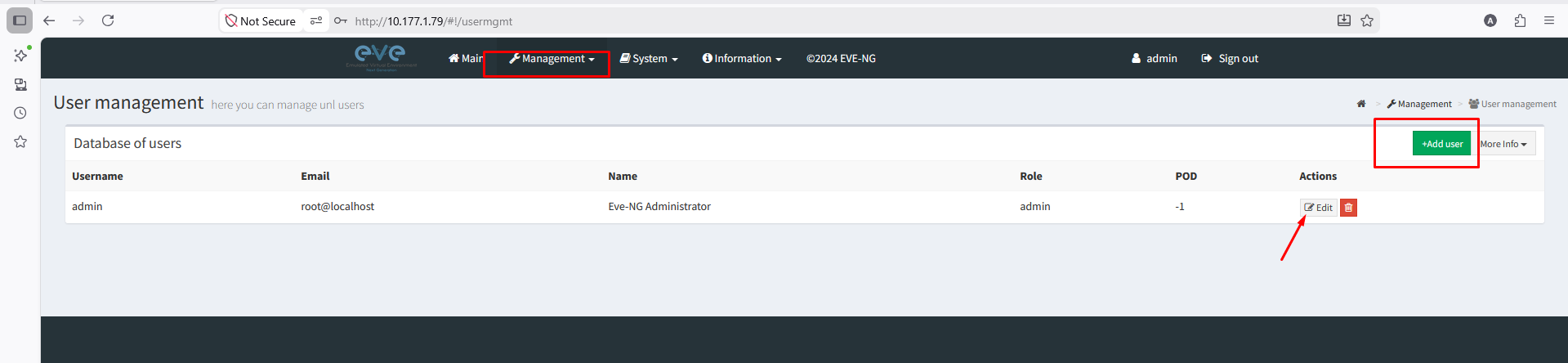
- Click Add User.
- Enter:
- Username
- Email Address
- Full Name
- Password
- User Role
- Save the account.
The new user will be able to log in using the assigned credentials.
Important Note
Creating a user in the EVE-NG Web Interface does not create a Linux system user.
If you require SSH access to the server, user management must be performed from the Linux operating system.
Before Publishing EVE-NG to the Internet
Make sure you have:
- Changed the root password
- Changed the default admin password
- Created a dedicated user account
- Verified SSH access security
- Tested login with the new credentials
Only then should you expose the server to a public IP address.
